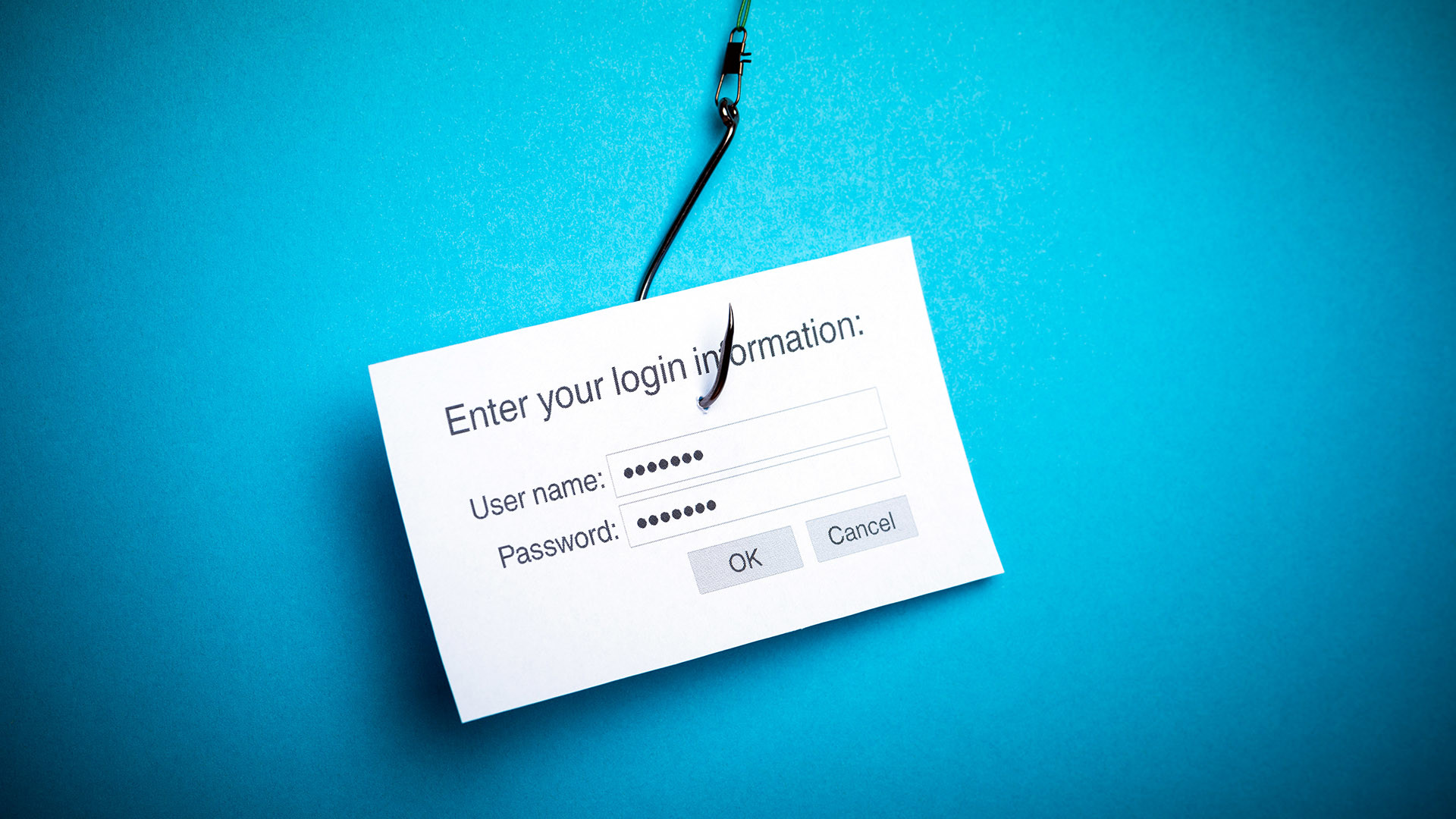

Understanding Phishing

phishing-scamReport Phishing or Spoof email

If you receive a suspicious email FORWARD it to support@globalit.com. Our security experts will be able to look at the email to determine if it is a fake. There are some hints about identifying scam email below but it is often very difficult to tell for sure since the scammers adjust their tactics. So, if you have the slightest doubt, send it to our experts for investigation.

Note: Please FORWARD the suspect email don’t cut and paste the contents because valuable tracking information about the source will be lost.

What is phishing?

“Phishing” is an attempt to steal your information. Criminals pretend to be a legitimate business to get you to disclose sensitive personal information, such as credit and debit card numbers, bank information, account passwords, or Social Security numbers.

One of the most common phishing scams involves sending an email that fraudulently claims to be from a well-known company. However, it can also be carried out in person, over the phone, via malicious pop-up windows, and “spoof” or fake websites.

How Phishing Works

  1. A criminal sends a large number of emails to people using lists of email address identified as active or at random. These emails appear to be messages from a well-known company. A common example contains a fictitious story designed to lure you into clicking on a link or calling a phone number.
  2. The phishing email will ask you to fill out a form or click on a link or button that take you to a fraudulent website.
  3. The fraudulent website mimics the company referenced in the email, and aims to extract your sensitive personal data.
  4. In essence, you think you’re giving your information to a trusted company when, in fact, you’re giving it to a criminal.

Note that phishing emails can also lure you to open suspicious attachments or visit websites that can infect your computer with malware.

How to Spot a Fake Email

There are many telltale signs of a fraudulent email:

  • False Sense of Urgency – Many scam emails tell you that your account will be in jeopardy if something critical is not updated right away.
  • Fake Links – These may look real, but they can lead you astray. Check where a link is going before you click by hovering over the URL in an email, and comparing it to the URL in the browser. If it looks suspicious, don’t click.
  • Attachments – Attachments can contain malware, so you should never open an attachment unless you are 100% sure it’s legitimate.

Here are some examples:

    • You receive an email stating: “Your order #ZK04769 is confirmed for shipment tomorrow. Please click here to review the shipping details.” But you never placed an order so you click on the link and login to see what it is. Only later do you realize that the link took you to a bogus website.
    • You receive an email stating: “We have noticed suspicious activity on your account. Please click here to review your recent transactions.” Once again the link takes you to a page that looks correct but is really a bogus link.
    • “We would like to offer you a special $50 coupon for being such a good customer. This offer is limited to the first 100 people so click here immediately to claim your reward.” Instead of a reward, you are directed to a fake website where you might give up your account id and password which the scammers will use to spend from your account.

For more examples see these sites:

If you fall for Phishing:

There are plenty of clever scam attempts and new ones are being created all the time, so despite your best intentions it could happen. If you have a suspicion that you fell for a scam here are some steps to protect yourself:

  1. Change your account passwords, PIN’s and Security Questions immediately. Do this for all of your bank accounts, email accounts and other online accounts.
  2. Run an Antivirus scan on your system to make sure that you did not pick up a virus. Make sure that your system and Anti-Virus software is up to date.
  3. Check your online accounts and statements vigilantly over the next few weeks and months for unexpected actions.

Phishing Resources

Here are some useful links to more on phishing:

https://info.globalit.com/wp-content/uploads/2015/02/phishing-scam.jpg

Computer Security|Desktop Tips|Internet Security
How fast is DSL

Wie-DSL-Breitbandinternet-funktioniertWhat speed is DSL
DSL is the abbreviated word for Digital Subscriber line, Digital subscriber line or DSL works off a DSLAM or Digital Subscriber Line Access Multiplexer which server as an interface device connecting from your location to the DSL providers closest network aggregation point, commonly a Central Office. DSL speed is affected by the wire feet distance from your location to the underlying providers DSLAM. DSL providers require a DSL modem installed on your premises.


Distance is measured in feet and up to 20,000 feet or 4 miles from the DSLAM (typically located in a Central Office).
How fast is your DSL?:
20,000 feet would produce approximate bandwidth 128kbps upload, 384Kbps download.
15,000 feet would produce approximate bandwidth 256k upload, 768kbps download.
10,000 feet would produce approximate bandwidth 400k upload, 1.1Mbps-2Mbps download.
5,000 feet would produce approximate bandwidth 500-768k upload, 3M-5Mbps download.
1,000 feet would produce approximate bandwidth 768k-1Mbps upload, 5M-7Mbps download.
* Distances and speeds are estimated. Actual distance varies and is determined by actual wire feet.

DSL is best used for residential or a web surfer, as the downstream is much faster than the out or upstream.
DSL is also prone to more technical glitches than T1 and has a lower priority of repair for the carrier.

We recommend purchasing DSL through your Global IT representative, or going direct and using the local provider in your area for DSL. The local provider will offer the best QOS and customer service compared to competitors.

DSL does not offer service level agreements (standard of services) so it is a best guess effort.

You can receive static IP’s with DSL.

https://info.globalit.com/wp-content/uploads/2015/01/Wie-DSL-Breitbandinternet-funktioniert.jpg

Dedicated Internet

Setup Automatic Replies for Exchange

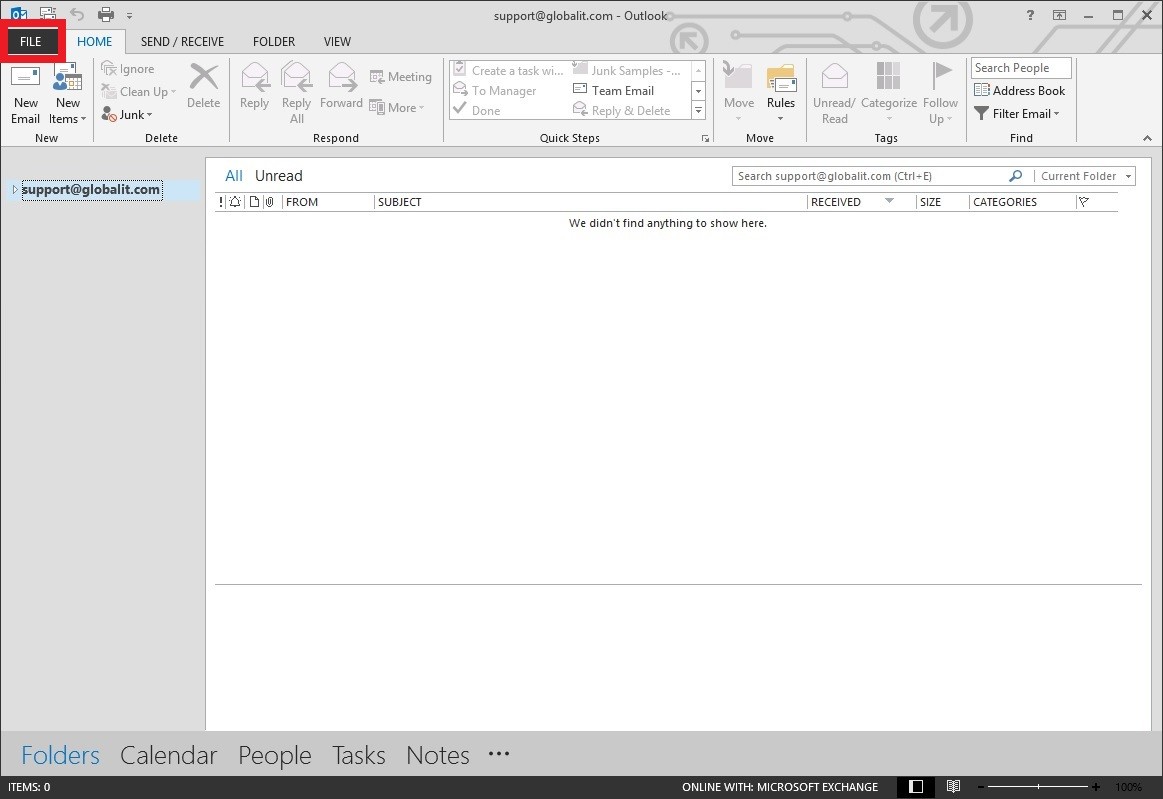
To setup automatic replies (out of office), in Outlook, select the ‘File’ tab

11


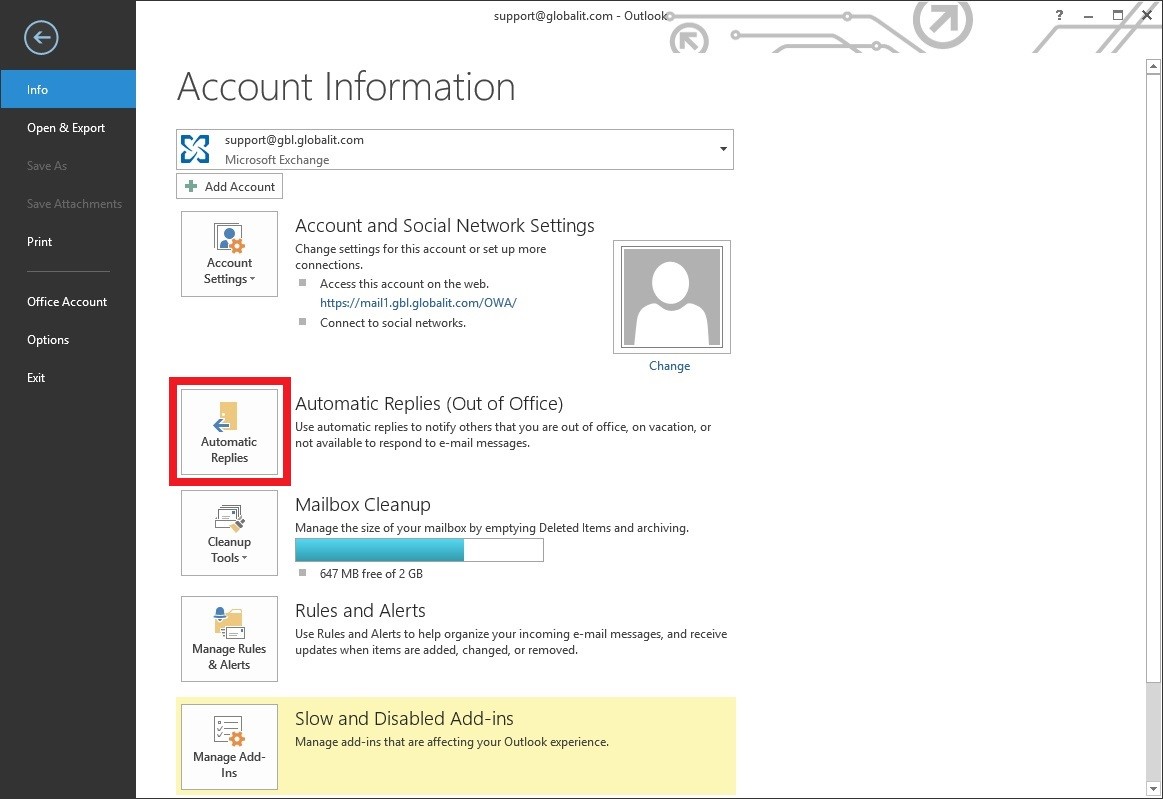
Next, select ‘Automatic Replies (Out of Office)’

12


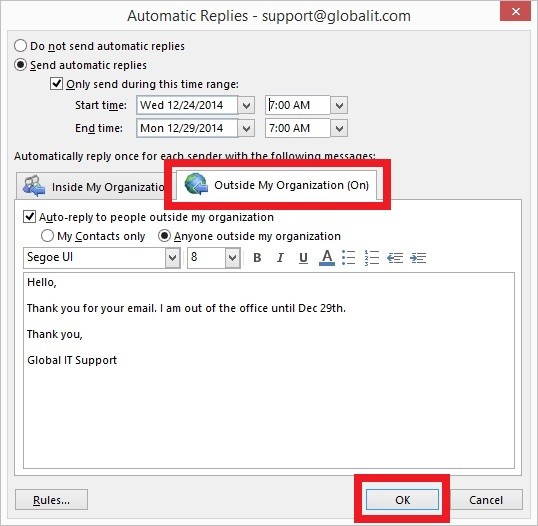
Select ‘Send Automatic Replies’

13


Complete the information for ‘Inside My Organization’

14


Next complete the information for ‘Outside My Organization’

15


Click ‘OK’ when done. Your Automatic Replies for Exchange are now setup.

https://info.globalit.com/wp-content/uploads/2014/12/111.jpg|https://info.globalit.com/wp-content/uploads/2014/12/121.jpg|https://info.globalit.com/wp-content/uploads/2014/12/131.jpg|https://info.globalit.com/wp-content/uploads/2014/12/141.jpg|https://info.globalit.com/wp-content/uploads/2014/12/151.jpg

Case Studies

Setup Auto-Response message for POP3/IMAP Clients

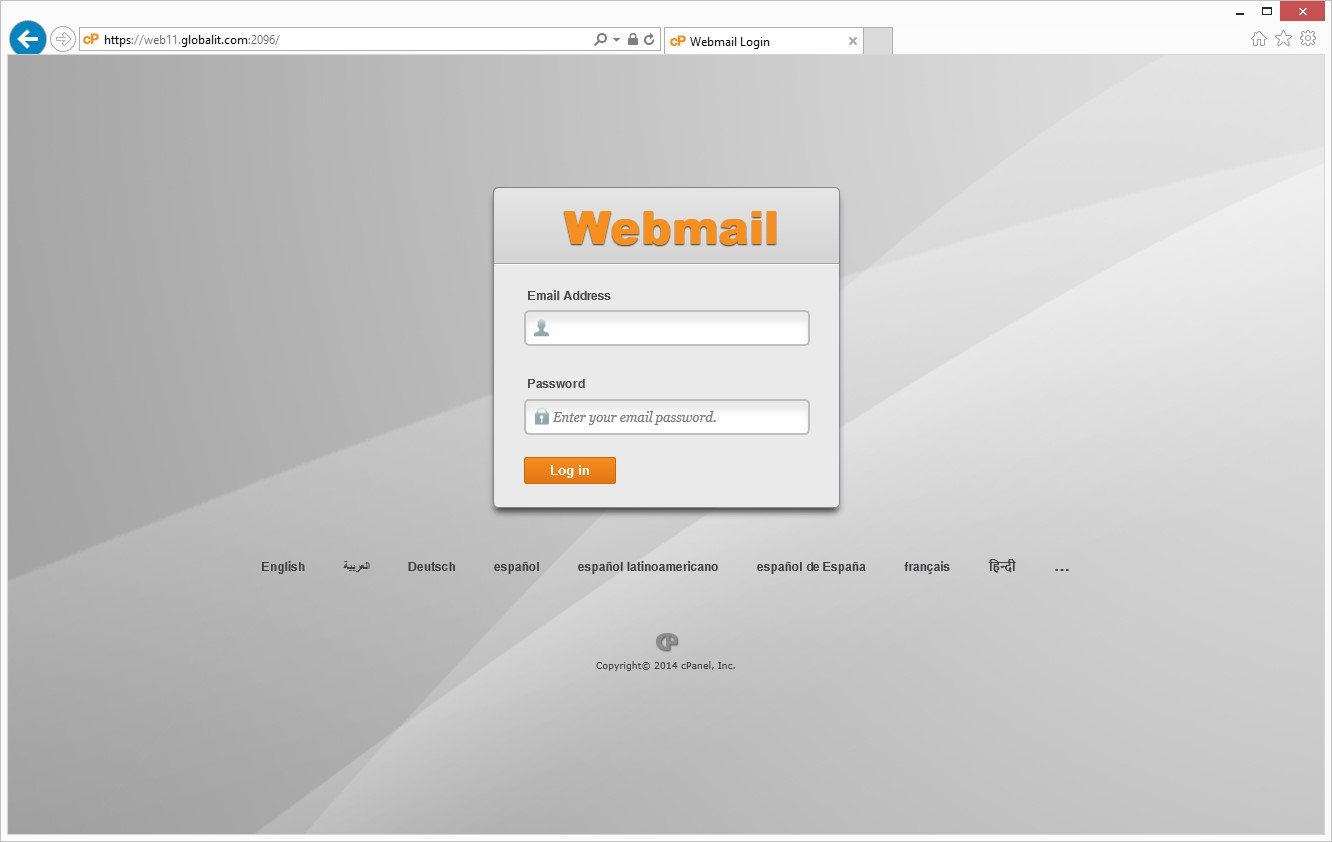
To setup an auto-response message, please log into your webmail.

1


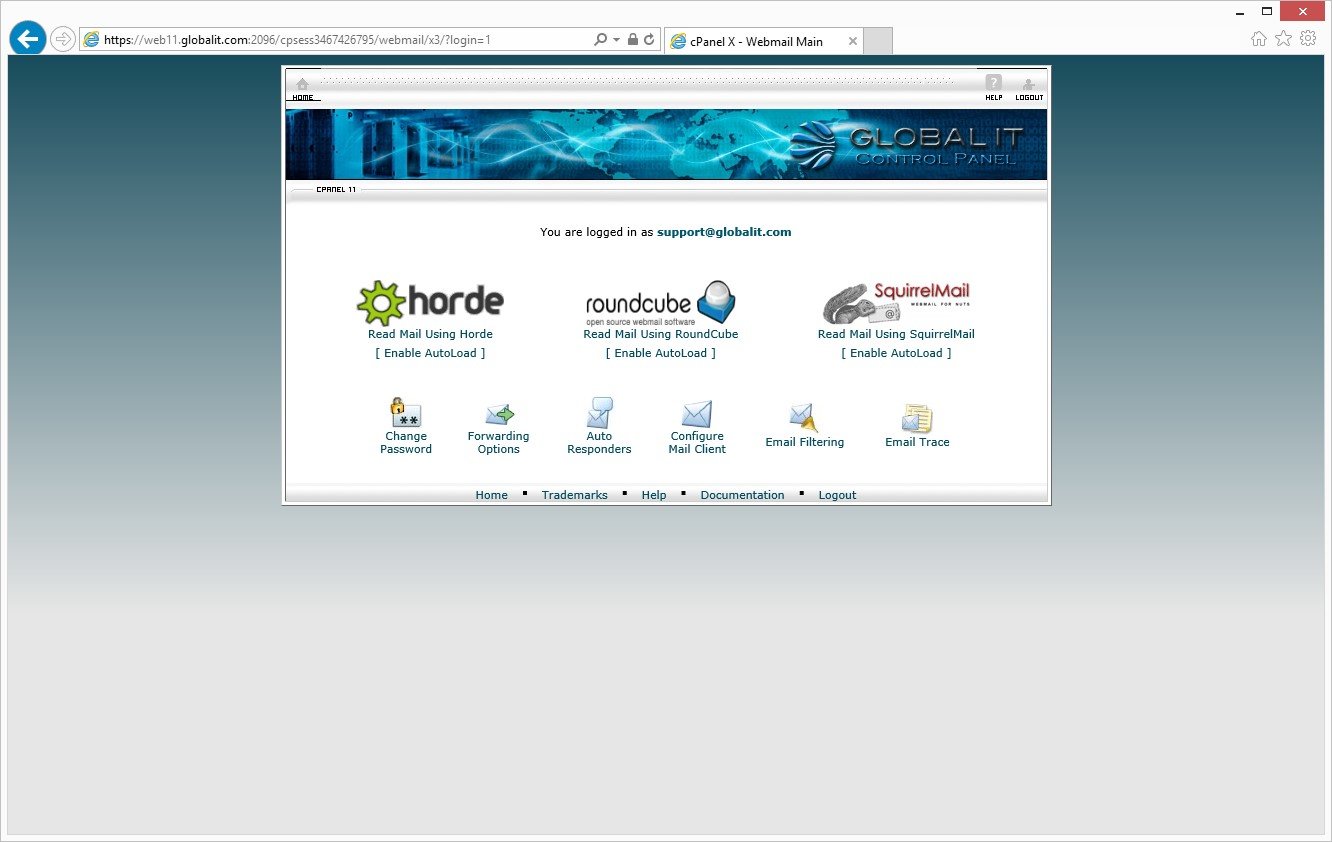
After you are logged in, select ‘Auto Responders’

2


Next, select ‘Add Auto Responder’

3


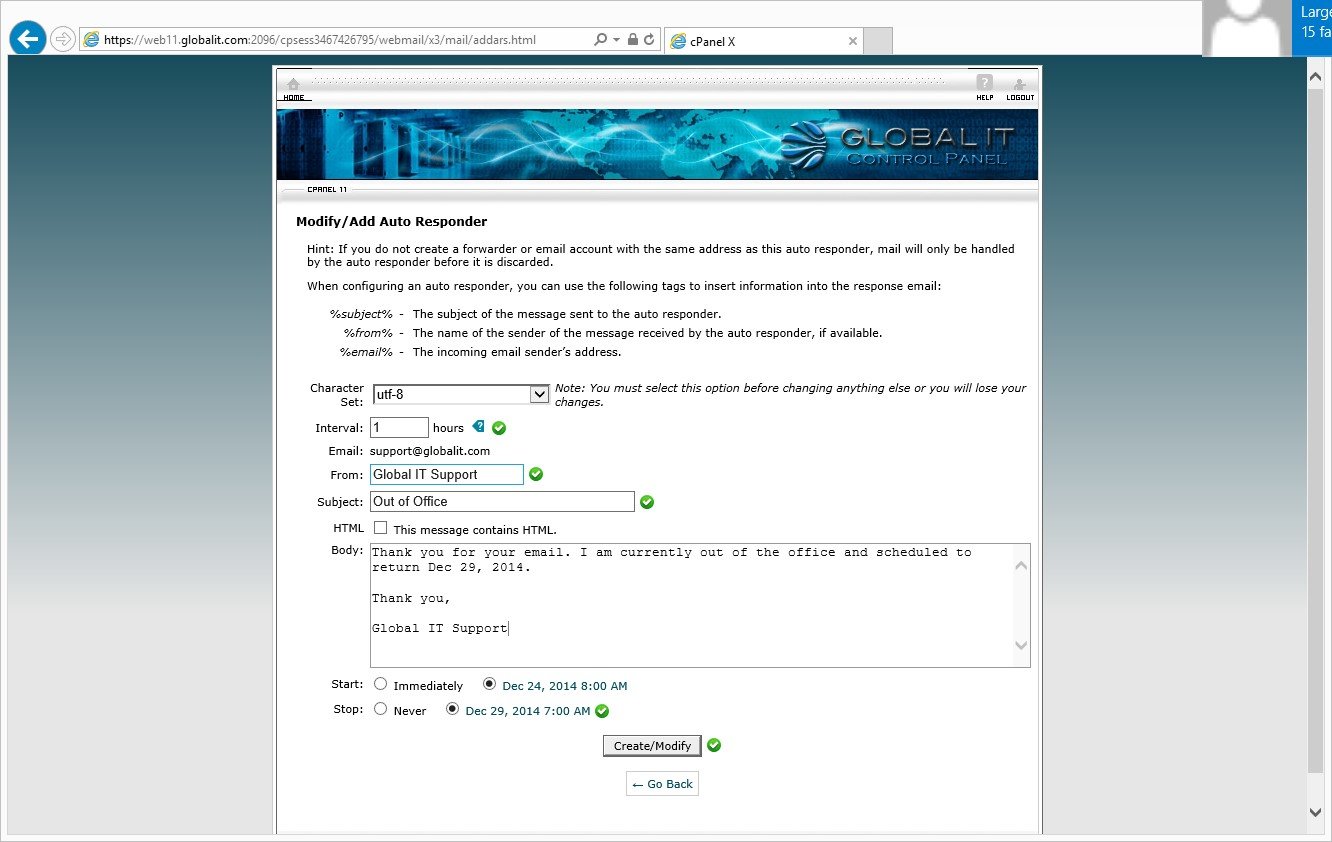
Fill in the empty fields and choose your Start and Stop Date/Time

5


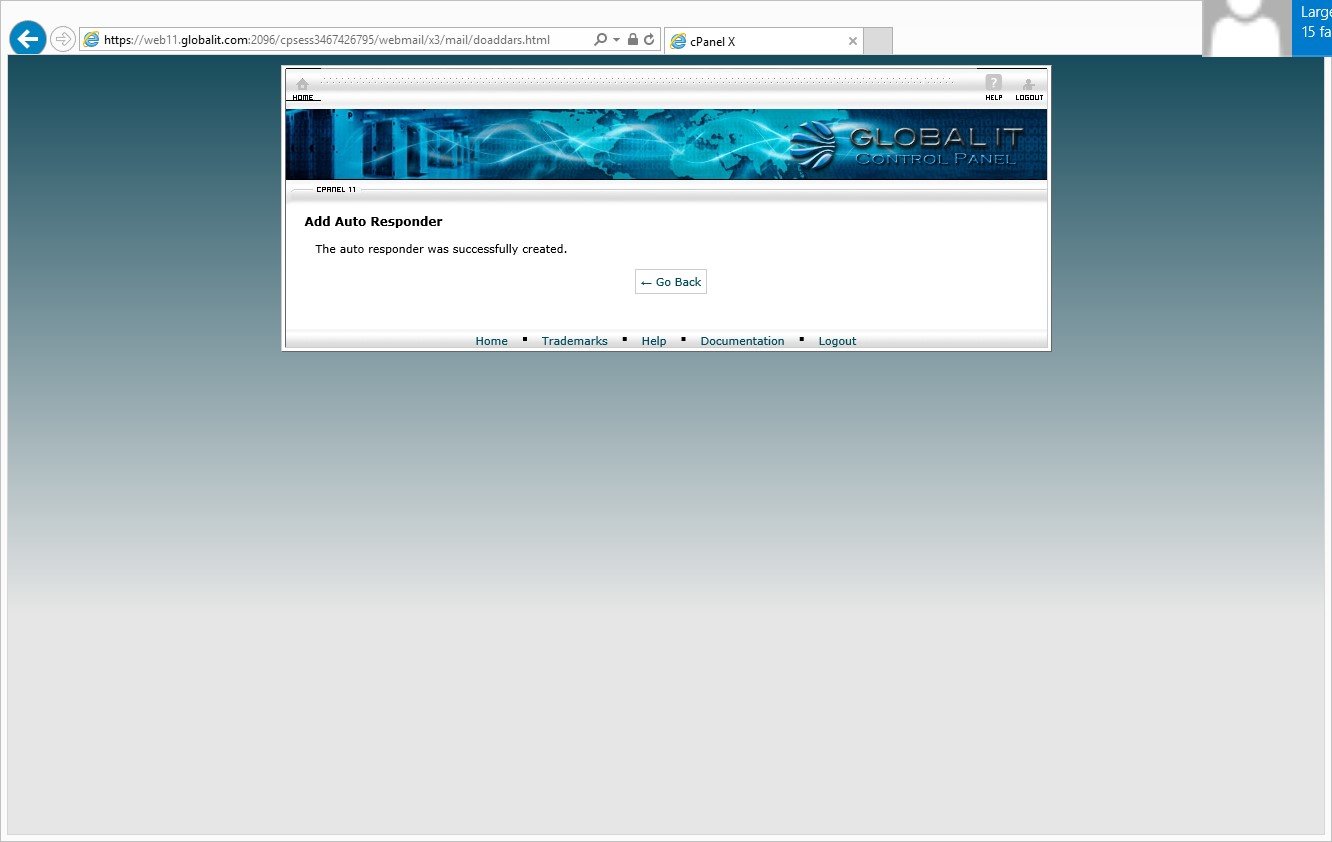
Select ‘Create/Modfiy’ when finished

6


Your auto responder has been successfully created.

https://info.globalit.com/wp-content/uploads/2014/12/110.jpg|https://info.globalit.com/wp-content/uploads/2014/12/22.jpg|https://info.globalit.com/wp-content/uploads/2014/12/31.jpg|https://info.globalit.com/wp-content/uploads/2014/12/41.jpg|https://info.globalit.com/wp-content/uploads/2014/12/51.jpg|https://info.globalit.com/wp-content/uploads/2014/12/61.jpg

Case Studies

Configure Microsoft Surface for Exchange

To add an Exchange account to your Microsoft Surface Tablet:
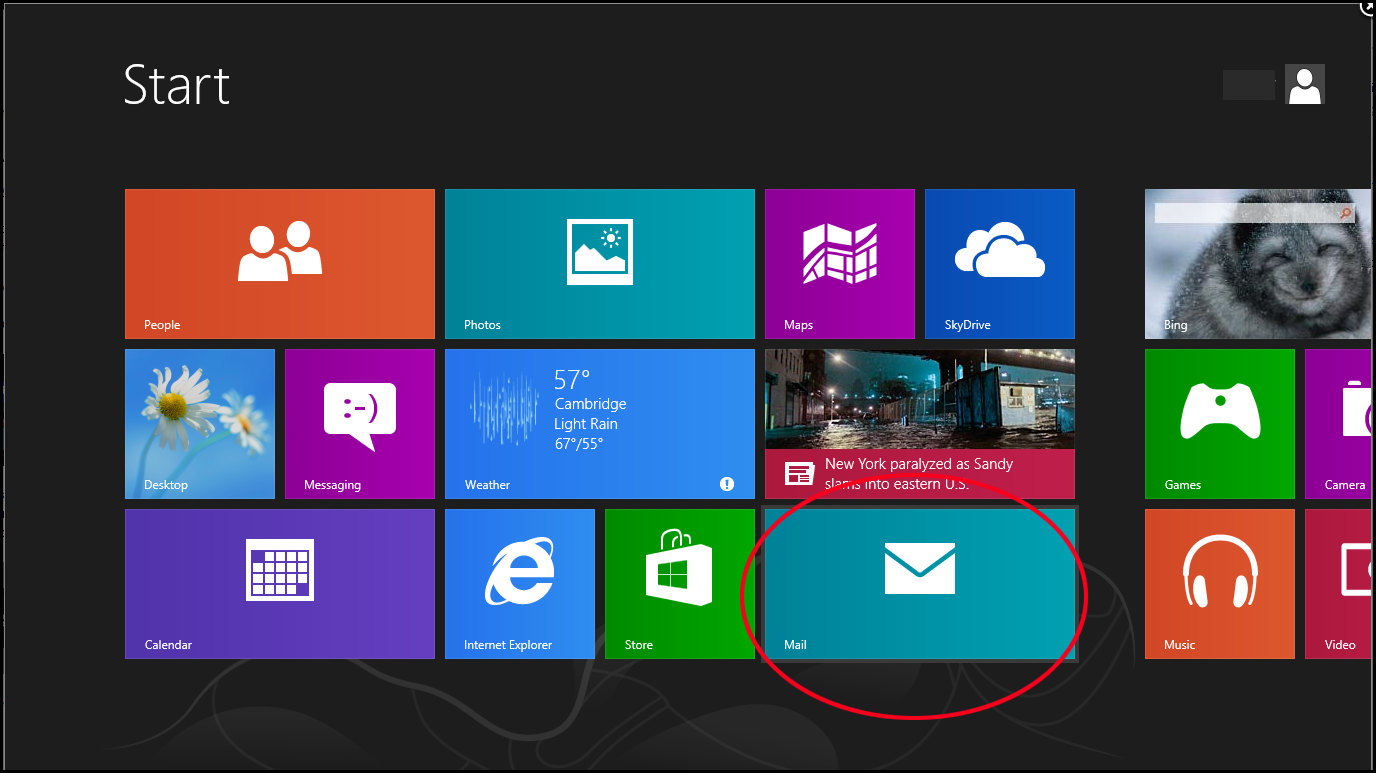
From the Start screen, select the Mail app tile.

1


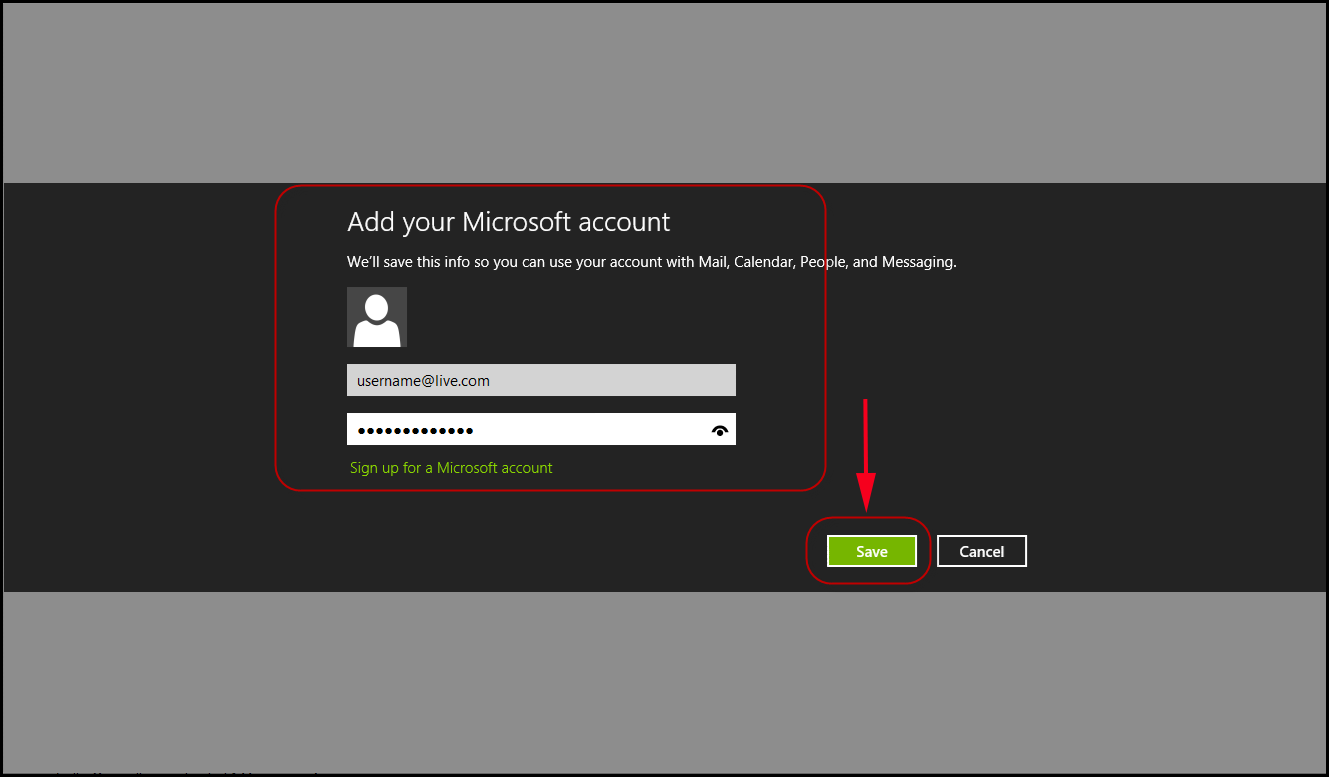
Add your Microsoft email address (Not Exchange), enter password, and click ‘Save.’
After saving, your Mail will open up in Microsoft Live email account.

2


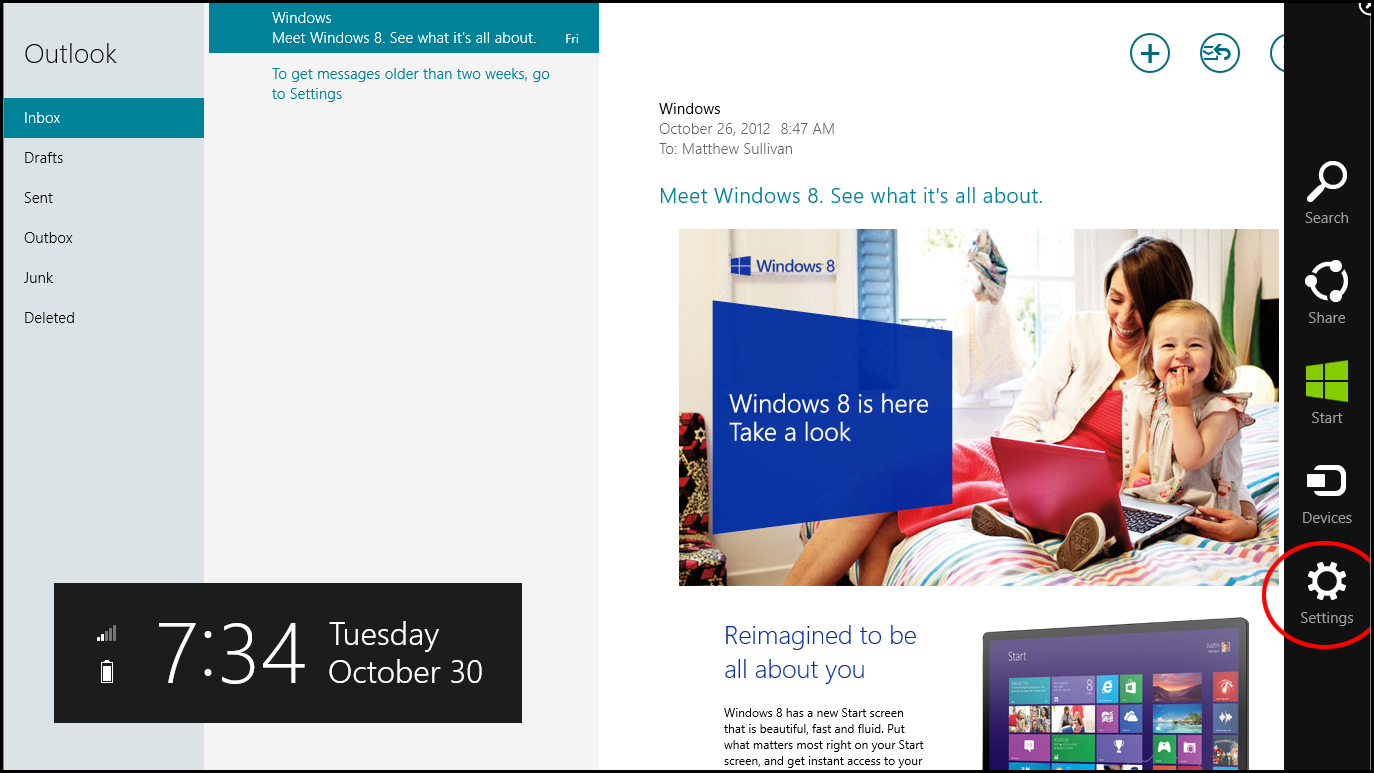
Here, on the right side, select Settings.

3


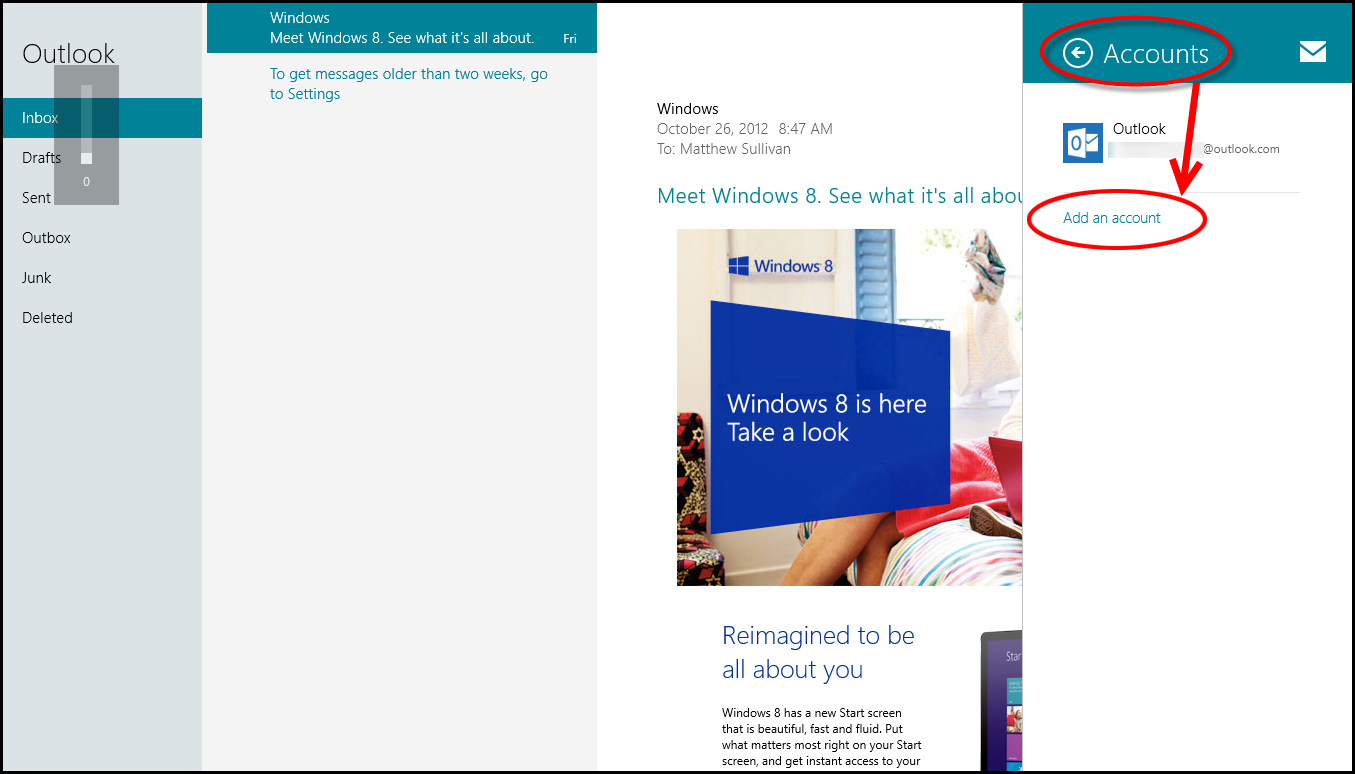
Select Accounts.

4


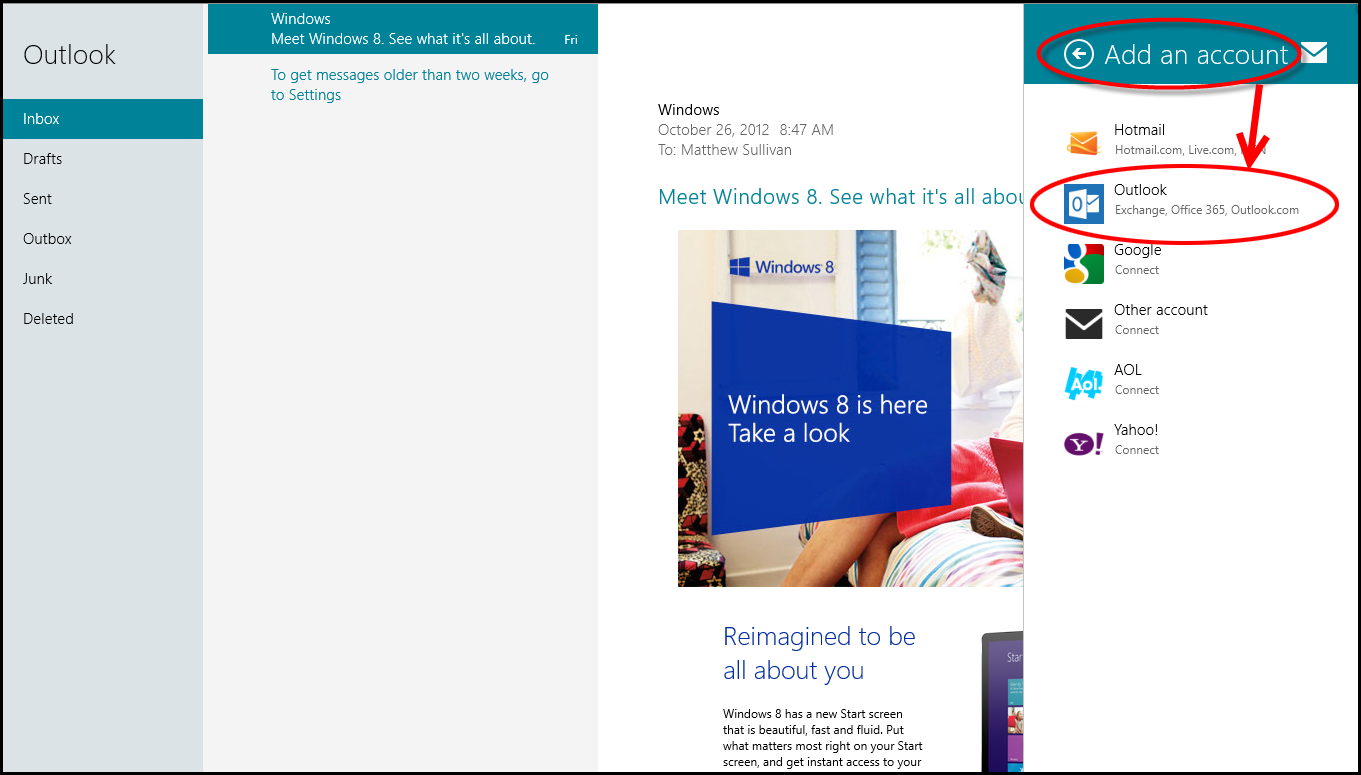
Select Add an account.

5


Select Outlook.

6


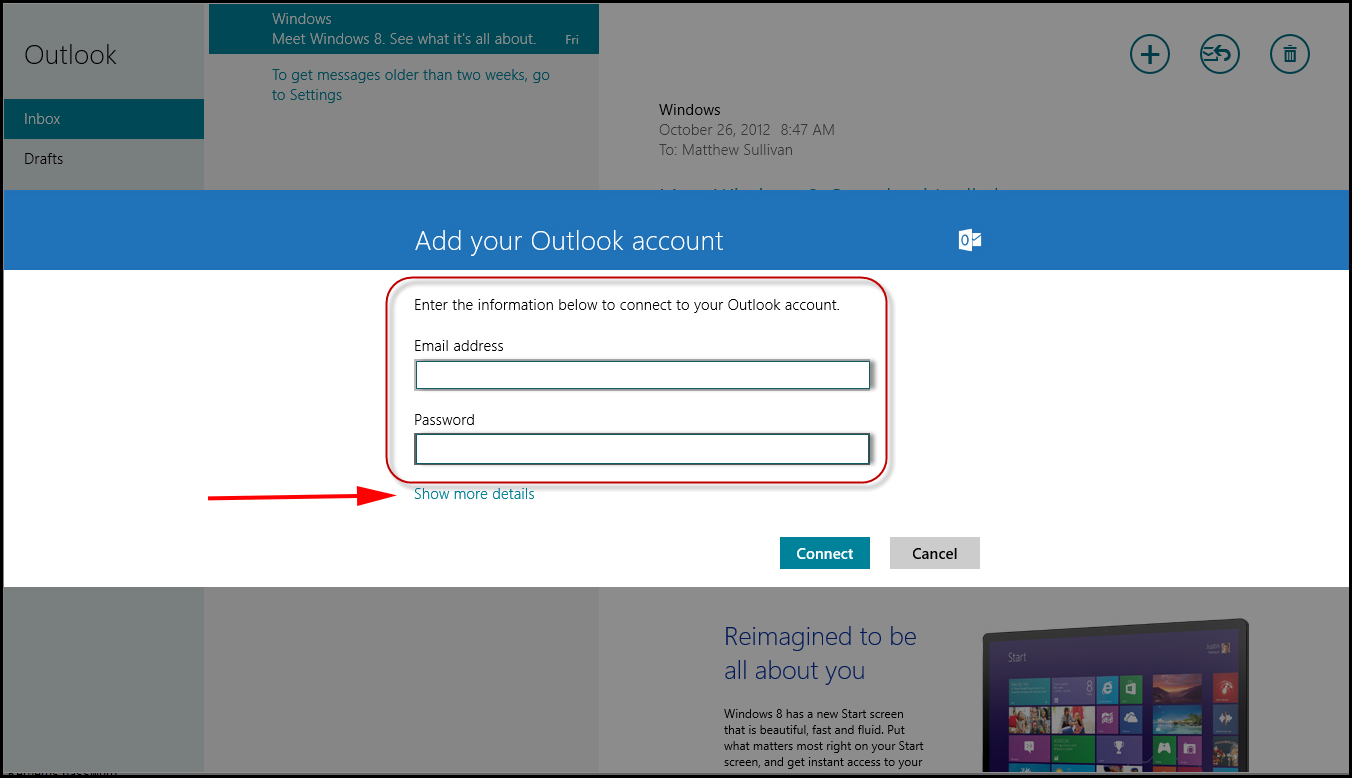
In the following screen, enter your email address for your Exchange account and password.

7


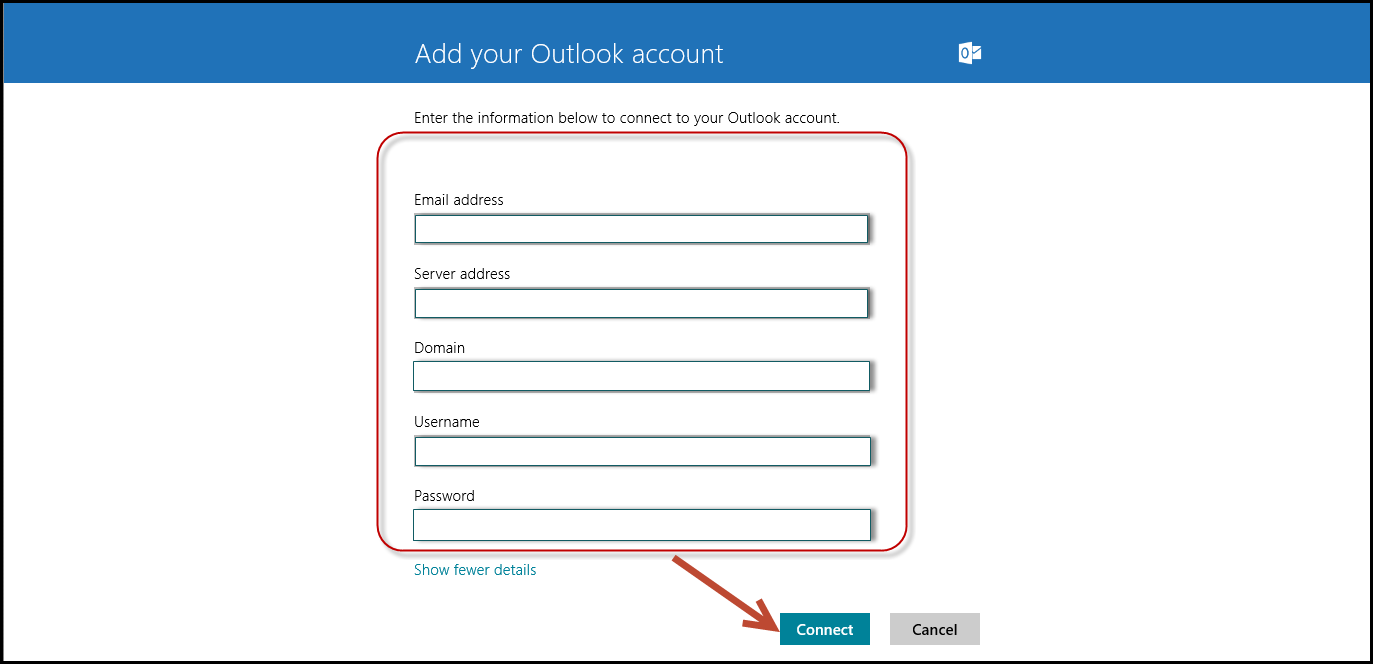
Click on ‘Show more details’ option.
Fill in the additional fields such as
Your full email address: full.email@domain.com
Server address: mail1.gbl.globalit.com
Domain: gbl
Username: full.email@domain.com
Password: <yourpassword>
Click on ‘Connect’ option.

8


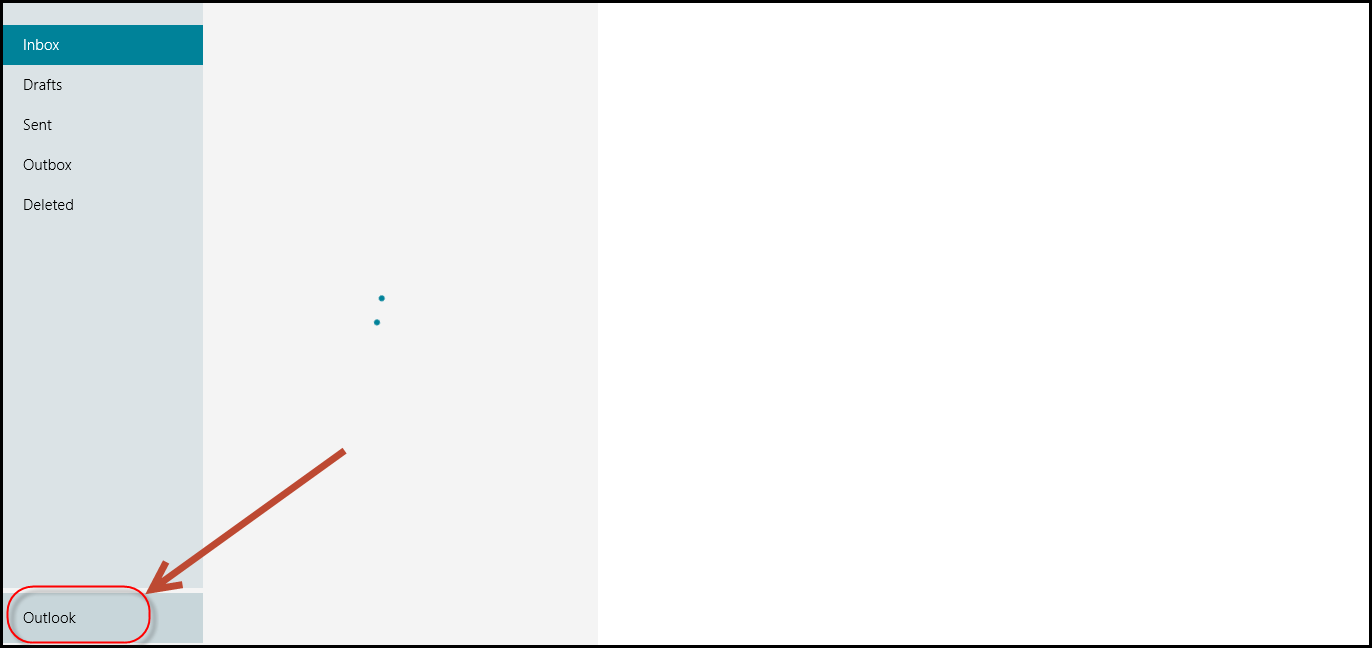
Your Exchange account is now set up.

9


https://info.globalit.com/wp-content/uploads/2014/12/1.png|https://info.globalit.com/wp-content/uploads/2014/12/2.png|https://info.globalit.com/wp-content/uploads/2014/12/3.png|https://info.globalit.com/wp-content/uploads/2014/12/4.png|https://info.globalit.com/wp-content/uploads/2014/12/5.png|https://info.globalit.com/wp-content/uploads/2014/12/6.png|https://info.globalit.com/wp-content/uploads/2014/12/7.png|https://info.globalit.com/wp-content/uploads/2014/12/8.png|https://info.globalit.com/wp-content/uploads/2014/12/9.png

Exchange|How-To

Configure Android for Global IT Exchange

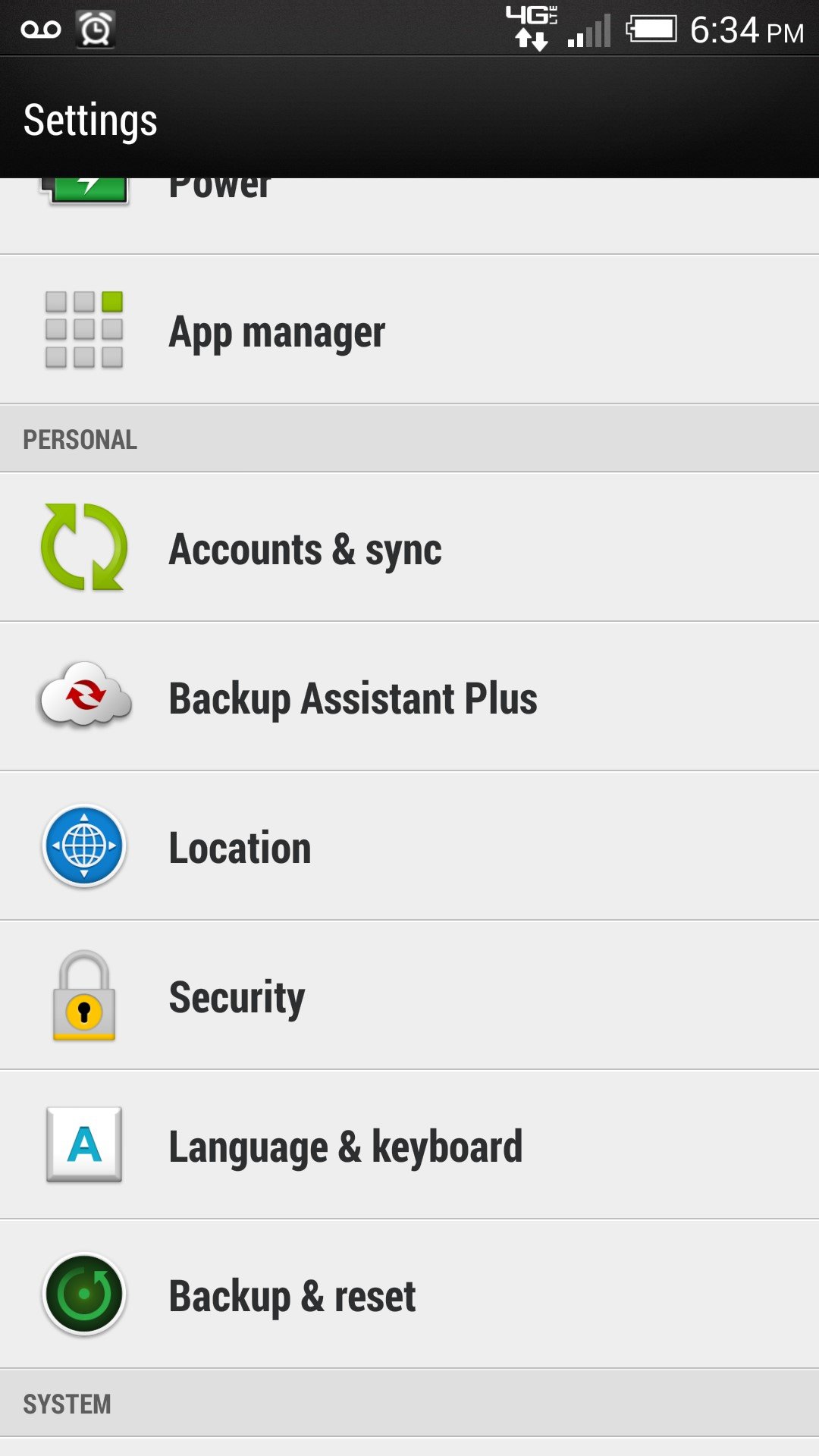
Go to ‘Settings’

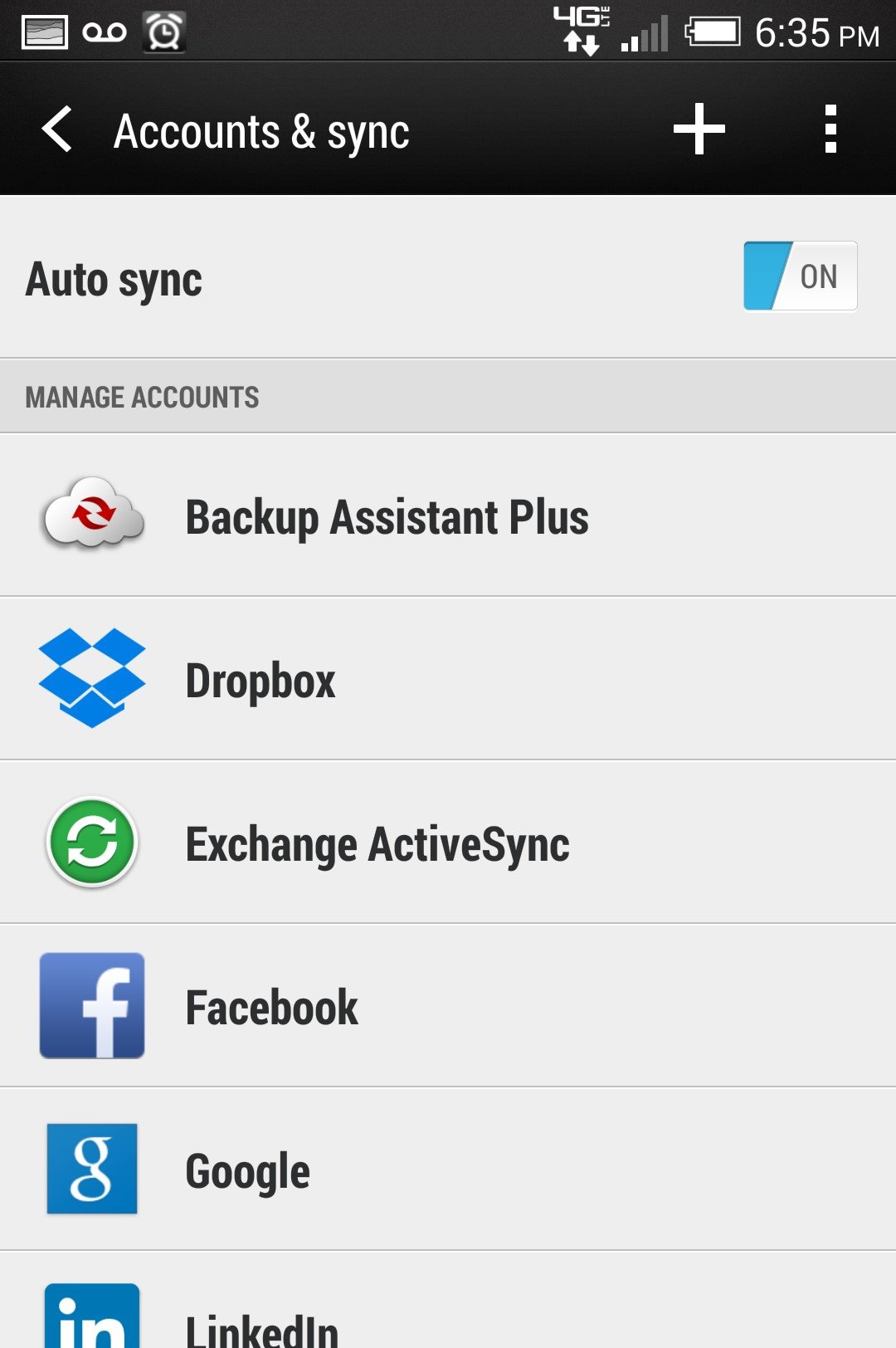
Select ‘Accounts & sync’

12


Select the ‘+’ to add a new account

13


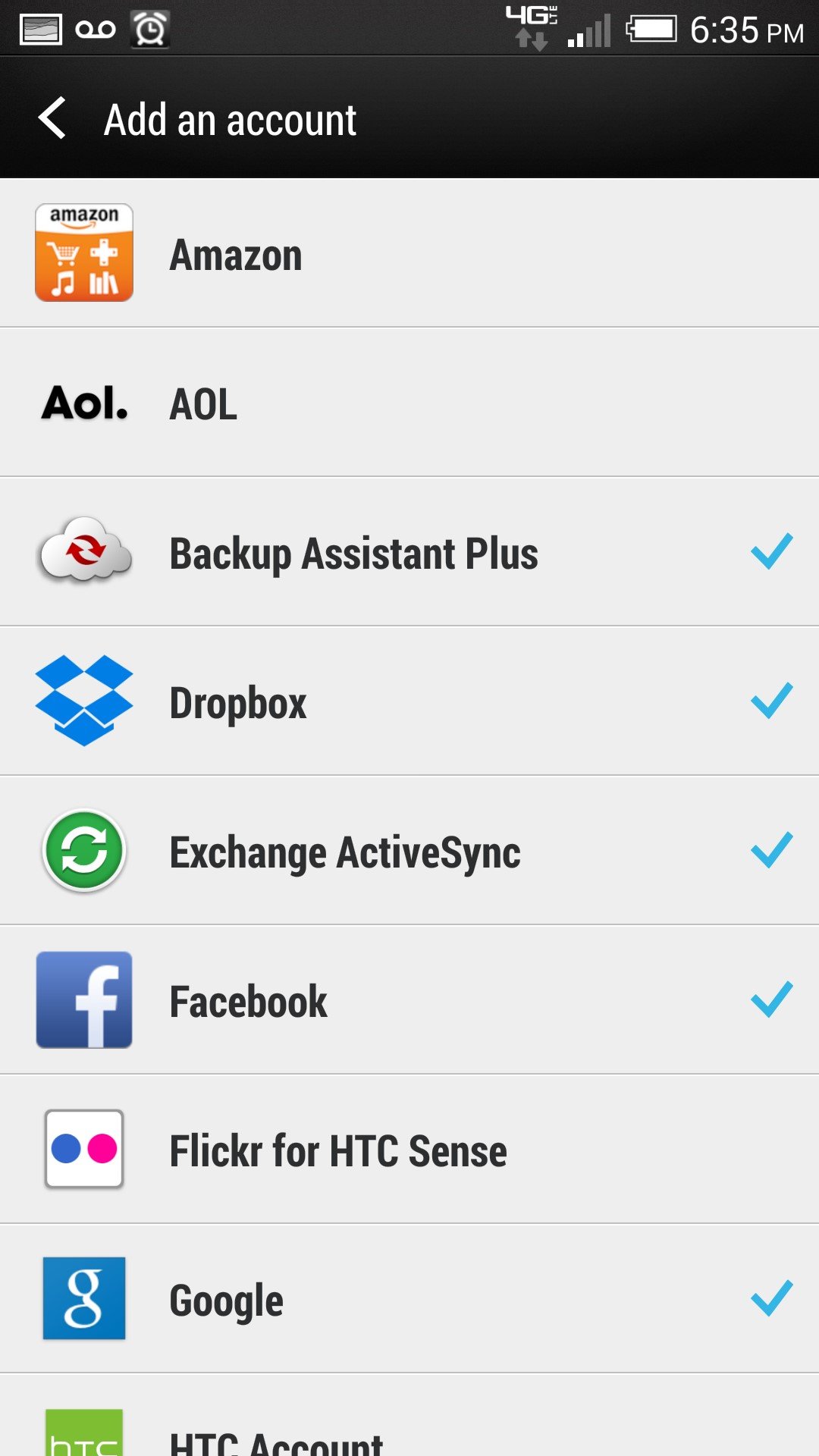
Select ‘Exchange ActiveSync’

14


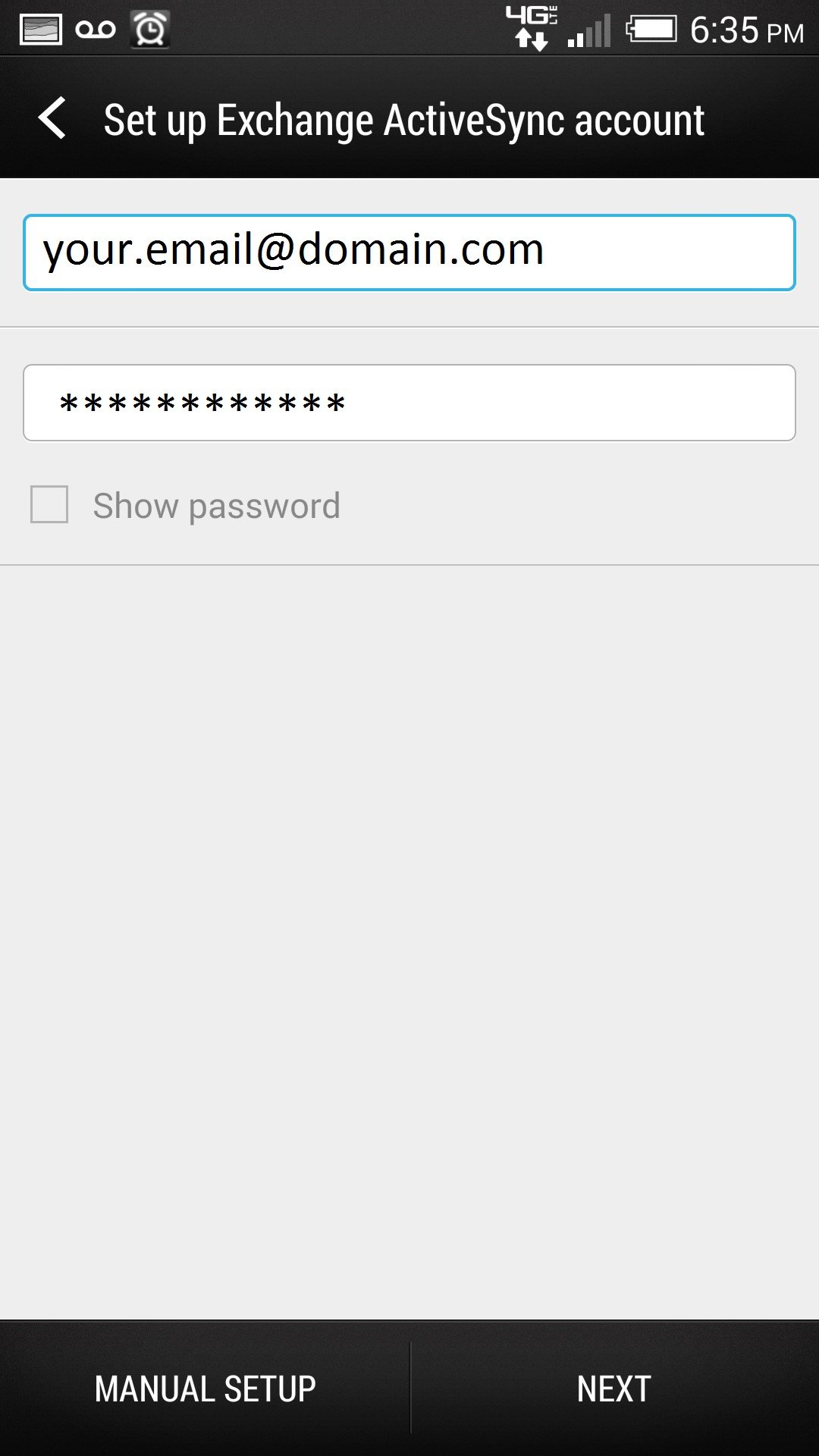
Enter your full email address, password, and select ‘Next’

15


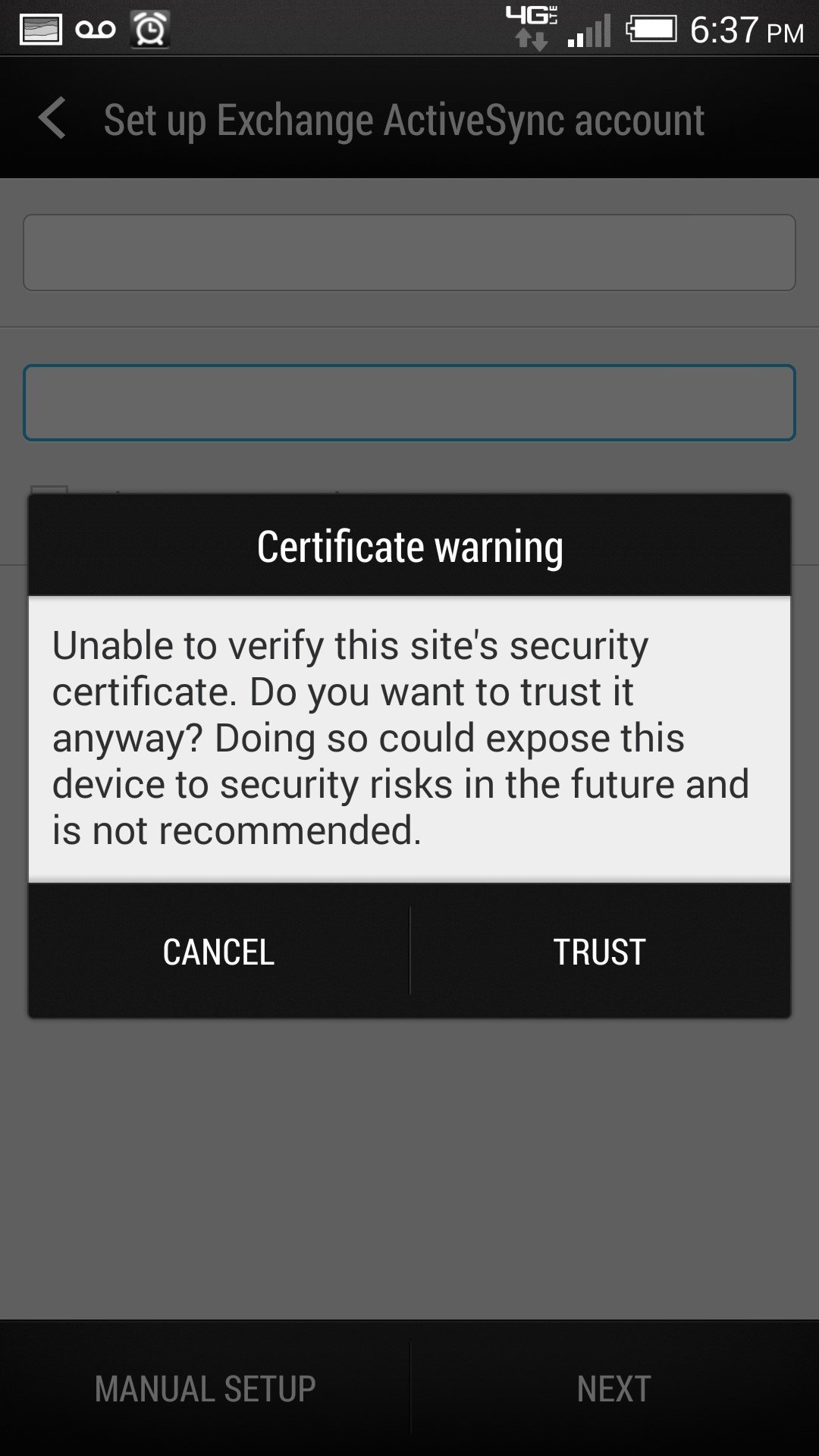
If a Certificate warning is displayed, choose ‘TRUST’

16


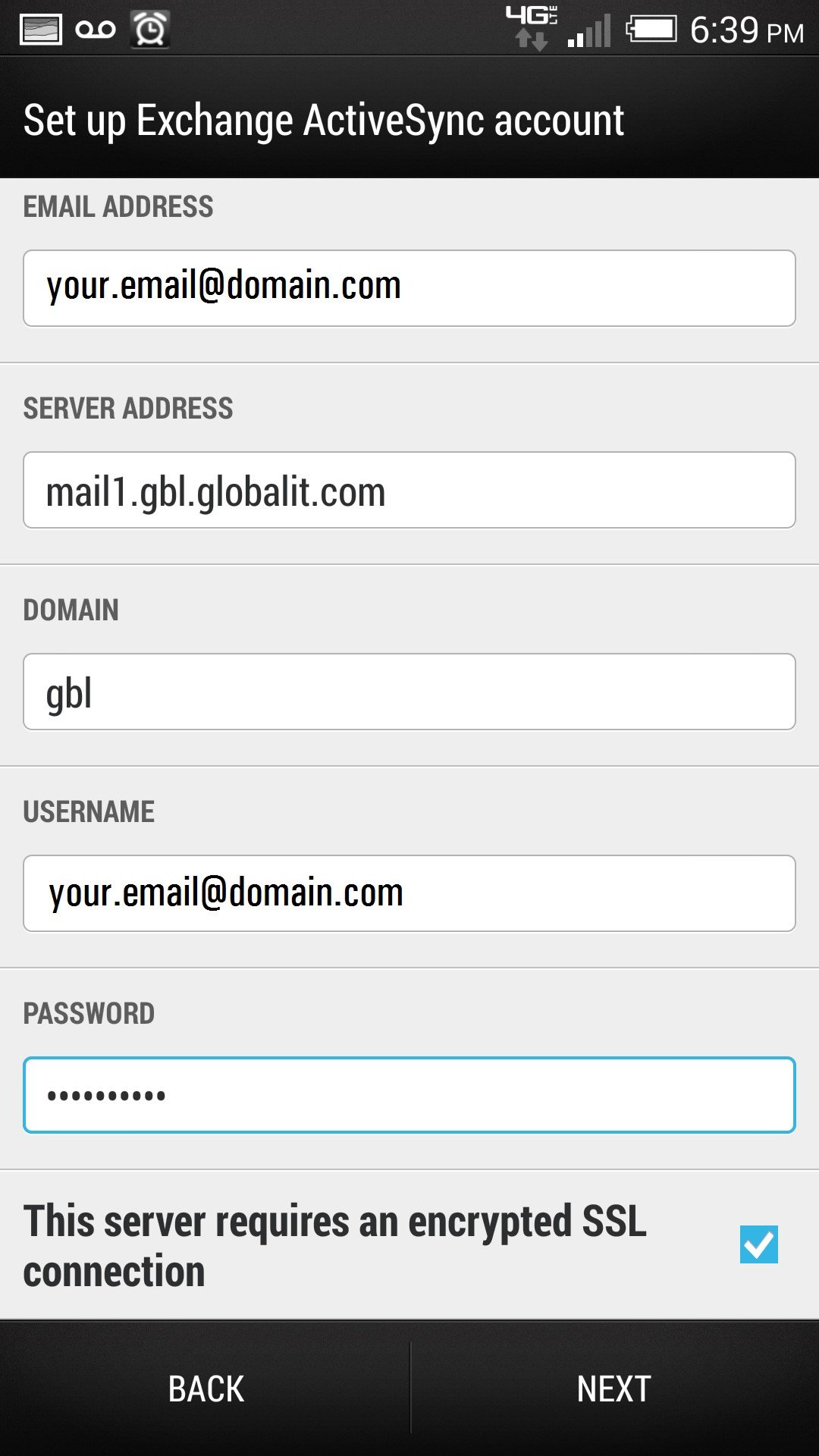
If the auto configure doesn’t complete the process, you will need to select ‘MANUAL SETUP’
If you are directed to this screen, fill in the fields as shown below and select ‘NEXT’

17


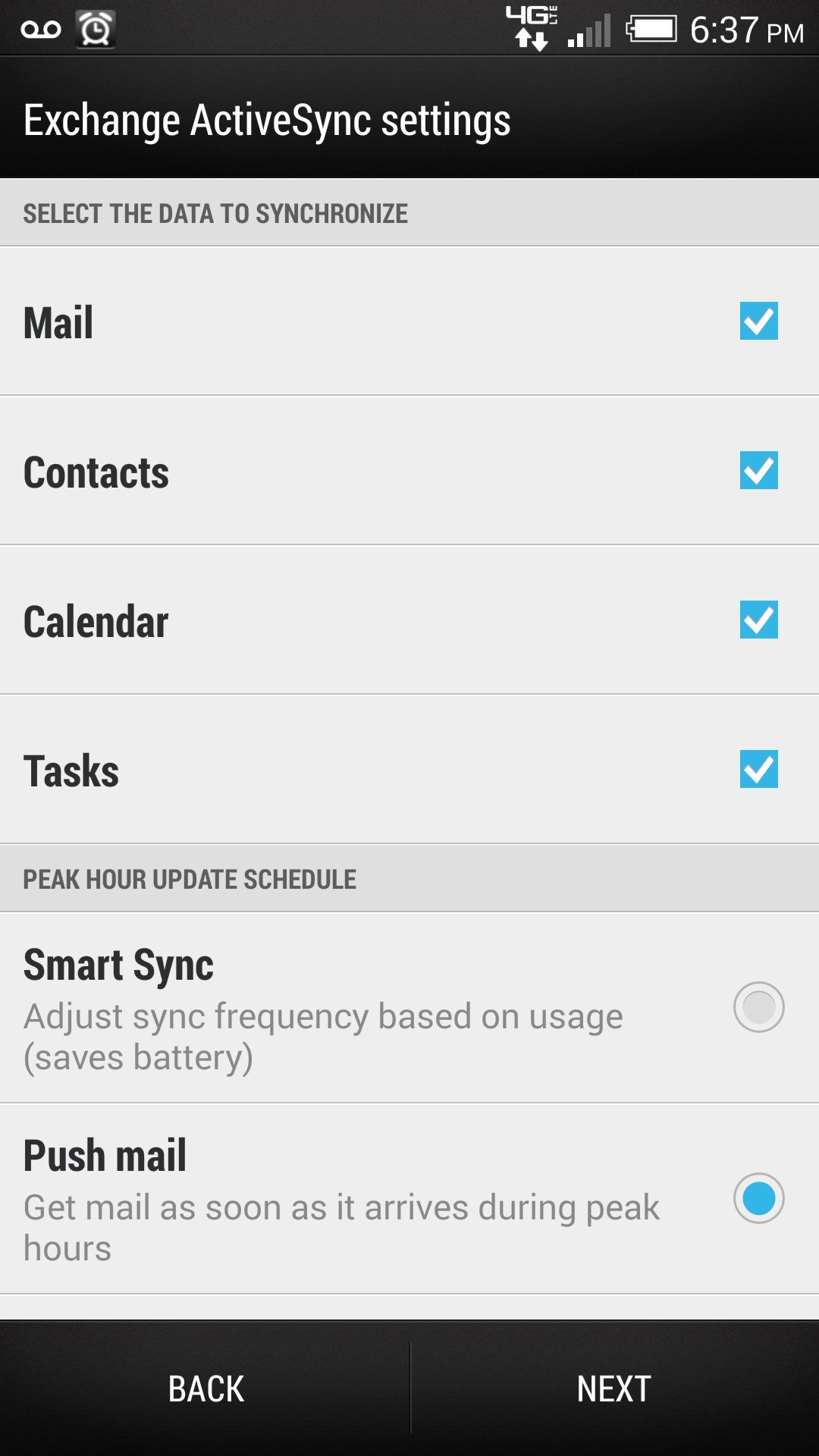
From here, select with items you wish to have sync’d on your phone, and select ‘NEXT’

18


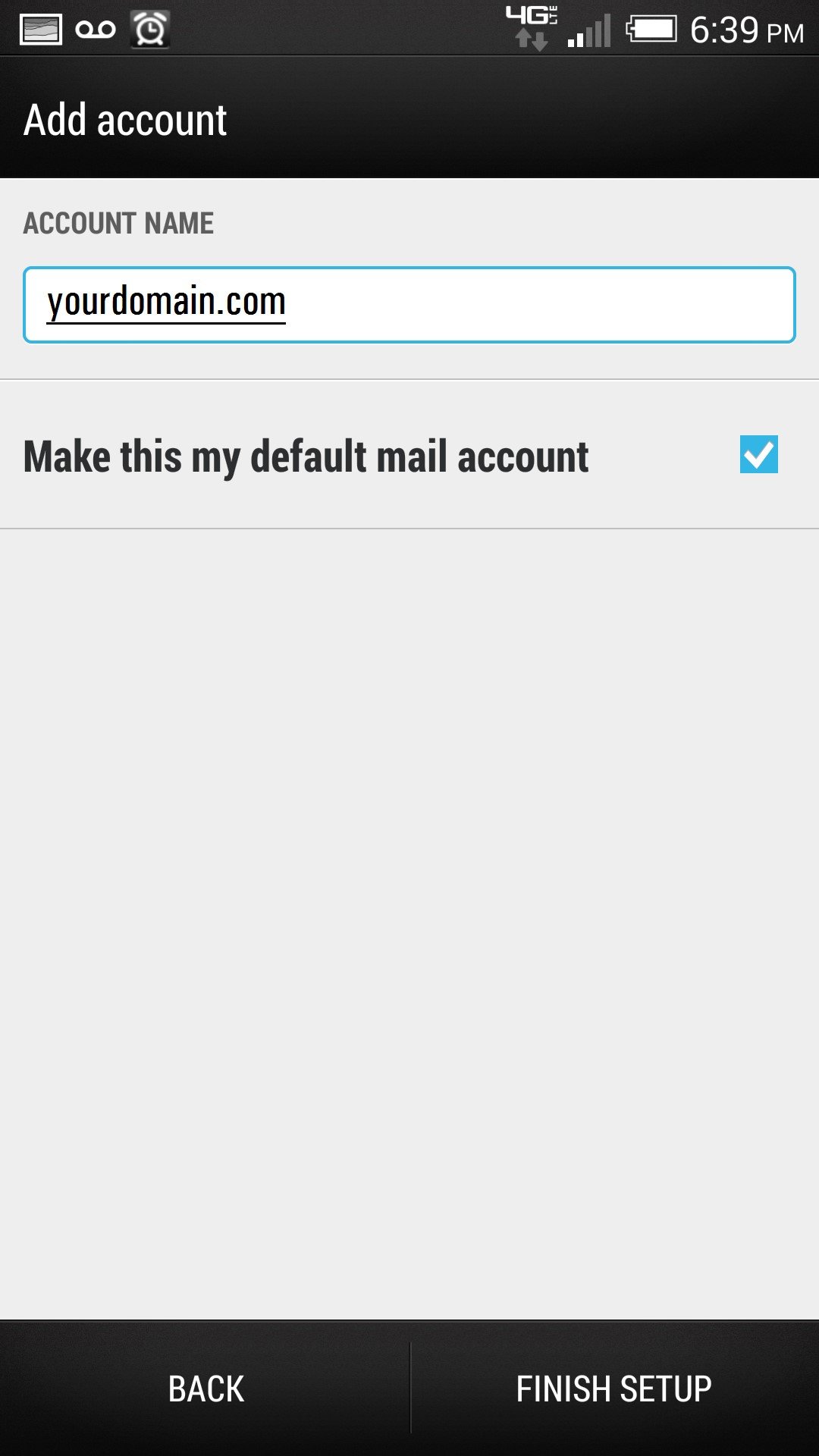
Name your account and select whether you wish this account to be your default account, and select ‘FINISH SETUP’

19


Your exchange account has now been configured on your Android device.

Exchange|How-To

Configure iPhone for Global IT Exchange

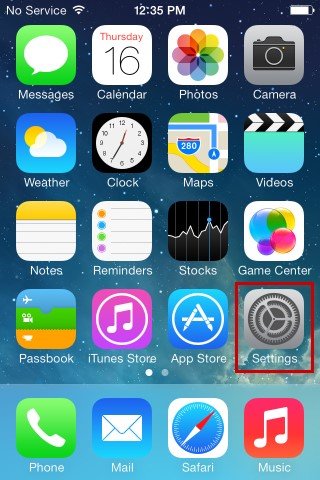
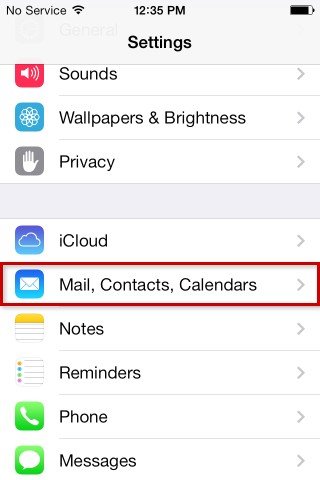
From the main screen, choose ‘Settings’

5


Choose ‘Mail, Contacts, Calendars’

6


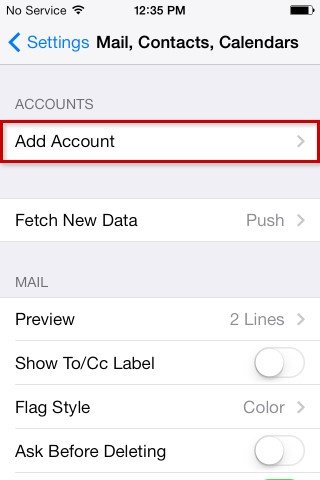
Choose ‘Add Account’

7


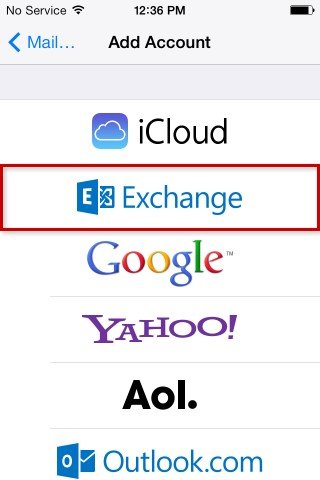
Choose Exchange

8


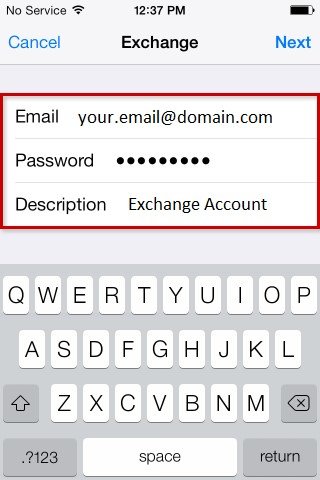
Enter your full email address, password, your chosen description, and choose ‘Next’

9


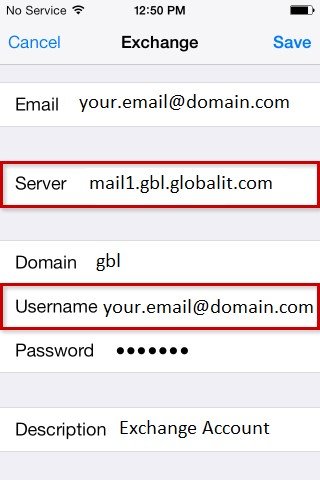
Enter your full email address, server, domain, full email address again, and password as shown below, and choose ‘Save’

10


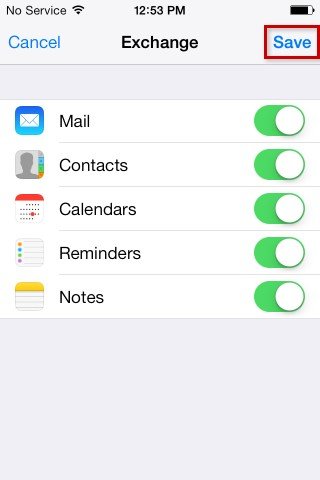
Select the options you wish to sync with your phone (default is all), and choose ‘Save’

11


Your iPhone is now configured for Global IT Exchange

Exchange|How-To

Configure Outlook 2013 for Global IT Exchange

Open a fresh installation of Microsoft Outlook 2013 or a new Profile.

Click on ‘Next’

1


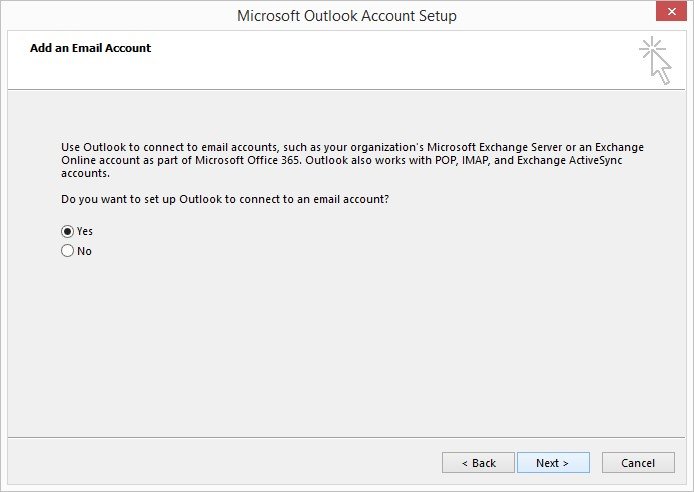
Choose ‘Yes’ and click on ‘Next’

2


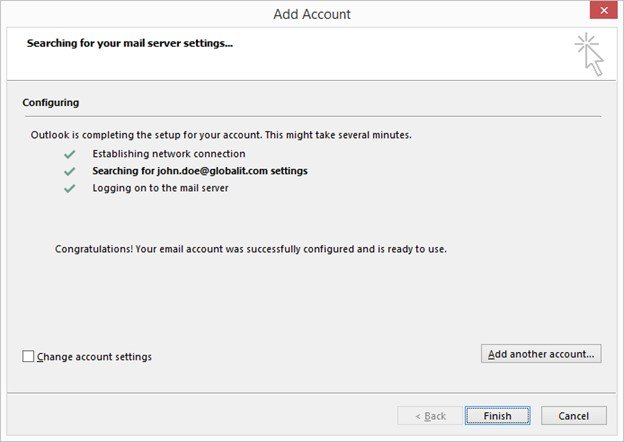
Fill in your name, full email address, password twice, and click on ‘Next’

3


Accept any security warnings

4


Your Outlook is now configured with Global IT Exchange

https://info.globalit.com/wp-content/uploads/2014/12/1.jpg|https://info.globalit.com/wp-content/uploads/2014/12/2.jpg|https://info.globalit.com/wp-content/uploads/2014/12/3.jpg|https://info.globalit.com/wp-content/uploads/2014/12/4.jpg|https://info.globalit.com/wp-content/uploads/2014/12/5.jpg|https://info.globalit.com/wp-content/uploads/2014/12/6.jpg|https://info.globalit.com/wp-content/uploads/2014/12/7.jpg|https://info.globalit.com/wp-content/uploads/2014/12/8.jpg|https://info.globalit.com/wp-content/uploads/2014/12/9.jpg|https://info.globalit.com/wp-content/uploads/2014/12/10.jpg|https://info.globalit.com/wp-content/uploads/2014/12/11.jpg|https://info.globalit.com/wp-content/uploads/2014/12/12.jpg|https://info.globalit.com/wp-content/uploads/2014/12/13.jpg|https://info.globalit.com/wp-content/uploads/2014/12/14.jpg|https://info.globalit.com/wp-content/uploads/2014/12/15.jpg|https://info.globalit.com/wp-content/uploads/2014/12/16.jpg|https://info.globalit.com/wp-content/uploads/2014/12/17.jpg|https://info.globalit.com/wp-content/uploads/2014/12/18.jpg|https://info.globalit.com/wp-content/uploads/2014/12/19.jpg|https://info.globalit.com/wp-content/uploads/2014/12/20.jpg|https://info.globalit.com/wp-content/uploads/2014/12/21.jpg

Exchange|How-To

Internet speed test

Today faster connections well over 100Mbps are becoming more common, and end users expect to test they are receiving the amount of speed they are paying for. When testing a connection faster that 100Mbps you may be surprised that accurate internet speed testing can be limited or affected by several factors.

Several limiting factors when testing bandwidth:
1. Limitations with NIC cardsspeedtest
2. Wi-Fi will almost always test slower than actual. This is due to wireless speed limitations, signal strength and packet loss
3. PC/Firewall/router duplex settings
4. Browser or device slowness (Cache)
5. Old cabling and patch panels limited to 10Mbps or 100Mbps
6. Slower 100Mb switches in between you and the core network switch, firewall or router
7. Other bandwidth traversing in/out from your networking to the internet needs to be factored into the math. For example, on a 100Mbps/100Mbps circuit and test your current usage lets say is about 20/50, your speed should reflect about 80/50.
8. Testing server speed limitations – Because testing servers are free, some companies do not like to pay for upgraded networks, servers and maintenance or additional bandwidth and so they limit the bandwidth for example to 50Mbps or 100Mbps. This bandwidth pipe will be shared across all network tests hitting that server at the same time, and that can be hundreds or thousands of simultaneous tests at one time.
9. Testing server test limitations – In most cases the testing servers are just not capable of testing speeds over 100Mbps per connection or test and when multiple tests are being run. The testing server or network is not capable of sustaining the many concurrent testing requests.

If you try internet speed testing using different speed testing systems, you will notice inconsistent results. This can be due to the current testing server load or software, geographical location of the server, or network configurations that may be different from the other servers.

Also, the most ideal way to test is to isolate out your network by connecting directly into the core switch or router and test from there. No other network devices should be connected during your test. This will rule out any local usage, viruses, or an incorrectly configured device. Read more on our website or test our network speed

Here are some approved testing servers:

ATT – http://www.att.com/speedtest/

Verizon – http://speedtest.verizon.net/

TWC – https://www.timewarnercable.com/en/support/speed-test.html

Level 3 – NY – http://linespeedtest.newyork1.level3.net:81/capacity.html

http://myspeed.visualware.com/index.php

http://www.speedtest.net/

https://info.globalit.com/wp-content/uploads/2014/11/speedtest.jpg

Dedicated Internet

Planning for a UPS – power supply system

Crashing computer systems and network devices can be detrimental to the continuity of technology and business operations. Loss of power can cause potential database errors, leading to failing programs and devices resulting in loss of business workflow, downtime, and thousands of dollars in labor or hardware for recovery attempts.

With aging power grids, the evolution of technology, and constant growing consumer demand; today’s business environment is demanding more than ever before from the electric power supply. Because of this demand and an aging power supply system, businesses and homes are more susceptible to current changes from upstream power outages or power outages as a direct impact. If you are dependent on technology, protecting your technology data and assets from a potential unrecoverable crash needs to be a priority. Power continuity for core network infrastructure and computing systems is imperative and planning for a UPS (Uninterrupted Power Supply) needs to be properly planned and managed.

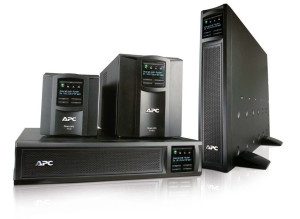
Here is a list of items to consider when designing or planning for a UPS system.ups-300x219

  • What type of power supply do you have or require?
    1. Single Phase (small servers, switches, routers) or three-phase (larger data centers, critical loads)
    2. 110V or 208V – 208v is recommended for mission-critical high load devices
    3. Outlet type i.e. L5 20R See: https://www.powerfig.com/nema-locking-chart.aspx
      1. You may be required to change the outlet type to suit the UPS or your requirements
    4. Outlet breaker size i.e. 15AMP, 20AMP or 30AMP breakers
  • Type of services i.e. PBX or Servers & switches or old servers
    1. Older machines may need a consistent voltage supply with less current changes and may require a more robust UPS system
  • Required watts or amperage needed on normal load, start-up, and heavy load i.e. Current output is 4AMP or normal and 6AMPs on startup/heavy load. It is recommended to leave about 4 AMPS below the breaker size.
    1. How much expansion will you require?
  • Run time needed at how many WATTS or AMPS.
    1. How long do you need to maintain power when on UPS?
    2. Do you want redundancy if a battery fails (N+1)?
  •  SNMP or Network interface Module
    1. SNMP module can be used for monitoring uptime, power changes, and also automatically powering down outlets as needed
  • Rack-mounted or floor stacked?
  • Maintenance
    1. The rule of thumb is to replace batteries every 24 months

If you provide this information to your engineer or power technician they can determine the appropriate UPS unit for your technology.

Contact a Global IT support technician for assistance in engineering the right UPS systems for your technology.

https://info.globalit.com/wp-content/uploads/2014/09/ups.jpg|https://info.globalit.com/wp-content/uploads/2014/09/ups-300×219-1.jpg

Cloud|Computer Security|How-To|IT Services